Setting up Microsoft Outlook 2013 using IMAP
คำตอบสั้น ๆ: This manual explains how to setup Microsoft Outlook 2013 using IMAP to send and receive email for an email mailbox you’ve created with Cloud E-mail Hosting Solution 1. Launch your Microsoft Outlook 2013. Select Add Accou
คู่มือนี้อธิบาย Setting up Microsoft Outlook ทีละขั้นตอน พร้อมคำสั่งที่ใช้ได้จริงและปัญหาที่พบบ่อย
This manual explains how to setup Microsoft Outlook 2013 using IMAP to send and receive email for an email mailbox you’ve created with Cloud E-mail Hosting Solution (Setting up Microsoft Outlook)
1. Launch your Microsoft Outlook 2013. Select Add Account
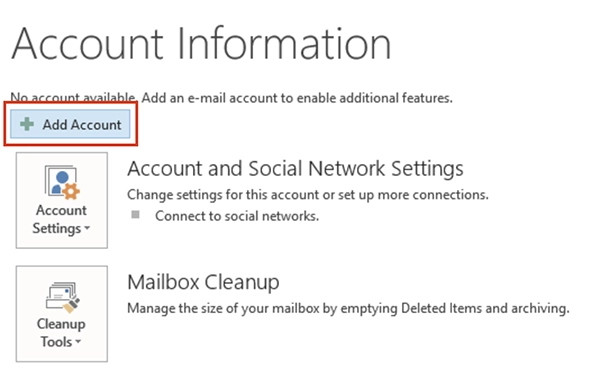
2. Choose Manual setup or additional server types and click Next.

3. In Choose Service window appears. Choose POP or IMAP and click Next.

4. On “POP and IMAP Account Settings” window appears.
enter your information as follows
1) User Information
- Enter Your Name and E-mail Address
2) Server Information
- Select IMAP from the drop down
- Incoming mail server : imap.mail-03.thaidata.cloud
- Outgoing mail server (SMTP) : smtp.mail-03.thaidata.cloud
3) Enter the e-mail address and password
4) Click More Settings.

5. Click the More Settings button. then Choose the Outgoing Server tab.
In the Outgoing Server tab, check My outgoing server (SMTP) requires authentication and make sure Use same settings as my incoming mail server is selected

6. Go to Advanced tab and enter Port
- For Incoming server (IMAP) enter : 143
- For Outgoing server (SMTP) enter : 587
Click OK button.

7. Click Next, Outlook should tell you that “all tests completed successfully”

8. You’re finished !
Click Finish, your email account in Microsoft Outlook 2013 is ready to use.

บทความ/ความรู้ ที่น่าสนใจ
- เข้าใจ On-Prem, IaaS, PaaS and SaaS ง่ายๆ ใน 1 นาที
- วิธีการตั้งค่าใช้งานบน MICROSOFT OUTLOOK 2013 (POP E-MAIL)
- 6 เหตุผล ที่บริษัทต้องมี Email Hosting @yourdomainname
ทำความเข้าใจ Setting up Microsoft Outlook ก่อนเริ่ม
IMAP keeps every message on the mail server and lets each device mirror it, so a message read on a phone shows as read in Outlook as well. That is what makes it the right choice for a business mailbox used from more than one place. POP does the opposite: it downloads mail to one computer and, with the wrong setting, removes it from the server for good. The values that matter during setup are the incoming and outgoing server names, their port numbers, and the encryption method — all three must match exactly what your provider issued.
สิ่งที่ต้องเตรียมก่อนใช้งาน Setting up Microsoft Outlook
- Your full e-mail address and password.
- The incoming (IMAP) and outgoing (SMTP) server names, ports and encryption type from your welcome e-mail.
- Microsoft Outlook 2013 installed and closed before you begin, so the new profile is created cleanly.
ตรวจสอบว่า Setting up Microsoft Outlook ทำงานถูกต้องแล้ว
- Outlook’s test message completes both the incoming and the outgoing step without an error.
- The mailbox folders appear in the left pane, including folders you created in webmail — proof that IMAP, not POP, is in use.
- Send one test message to an outside address and confirm it arrives.
ข้อควรรู้และข้อจำกัดของ Setting up Microsoft Outlook
- If mail arrives but will not send, the fault is almost always in the outgoing server settings — check that authentication for the outgoing server is enabled.
- Always use SSL or TLS. An unencrypted connection sends your password across the network in clear text.
- Keep the same server names on every device. Mixed settings are the usual reason one device works and another does not.
คำถามที่พบบ่อยเกี่ยวกับ Setting up Microsoft Outlook
Will my old mail disappear from webmail after setup?
No. With IMAP the mail stays on the server; Outlook only shows a copy. Deleting a message in Outlook, however, deletes it everywhere.
Outlook keeps asking for my password.
Re-enter the password once and tick the option to remember it. If it still repeats, check the account type and the outgoing server authentication setting, which is the common cause.
Can I use the same mailbox on my phone at the same time?
Yes. IMAP is designed for exactly that, and every device will show the same read, replied and filed state.
อ่านเพิ่มเติมเกี่ยวกับ Setting up Microsoft Outlook
- Categories:
- Manual
- Microsoft 365
Related Posts
หมวดหมู่ที่น่าสนใจ
- Account Settings
- AD Server
- AI
- Alibaba Cloud
- Anti-Spam Gateway
- AWS Amazon Web Services
- Campaign
- CentOS/AlmaLinux
- Cloud
- Cloud Backup
- Cloud Communication
- Cloud Migration
- Cloud Security
- Cloud Server Management
- Cloud Solution
- Cloud Solution for Government
- Cloud Solutions by Industry
- Cloud Storage
- Cloud VPS App Plus +
- Cloud VPS DirectAdmin
- Cloud VPS Plesk
- CSR
- Cyber Security
- Cybersecurity
- Data Sovereignty
- Database Server
- DDoS
- Digital Tranformation
- Digital Transformation
- Direct Mail
- Directadmin
- Domainname
- Ecommerce
- ERP
- Generative AI
- Getting Started
- Google Cloud
- Google G Suite
- Huawei Cloud
- IT News
- Linux Server
- Managed Cloud Services
- Managed Service Provider
- Manual
- Microsoft
- Microsoft 365
- Microsoft Azure
- News
- On-premise
- Private Mail Server
- Promotion
- Recommend Solution (Enterprise)
- Server
- Sovereign Cloud
- THAI DATA CLOUD Platform
- Ubuntu
- Ubuntu
- Uncategorized
- VMware
- VPS Server
- Web Design
- Web Hosting
- Web Hosting (DirectAdmin)
- Web Hosting (Plesk)
- Web Technologies
- Windows Server
- Wordpress
- Zimbra
- เรื่องราวความประทับใจ
- โซลูชันสำหรับธุรกิจการผลิตและยานยนต์
- โซลูชันสำหรับธุรกิจการศึกษา
- โซลูชันสำหรับธุรกิจการเงิน
- โซลูชันสำหรับธุรกิจขนส่งและกระจายสินค้า
- โซลูชันสำหรับธุรกิจค้าปลีก
- โซลูชันสำหรับธุรกิจท่องเที่ยว
- โซลูชันสำหรับธุรกิจบริการสุขภาพและโรงพยาบาล
- โซลูชันสำหรับธุรกิจประกันภัย
- โซลูชันสำหรับธุรกิจพลังงานและสาธารณูปโภค
- โซลูชันสำหรับธุรกิจสื่อสารมวลชนและเอ็นเตอร์เทนเมนท์
- โซลูชันสำหรับธุรกิจอสังหาริมทรัพย์
- โซลูชันสำหรับธุรกิจเทคโนโลยี


